Okta Portal SSO
ใช้ Okta เป็น Identity Provider เพื่อเข้าสู่ระบบ Halo portal โดยใช้ SSO
ข้อกำหนดเบื้องต้น
- เซิร์ฟเวอร์การให้สิทธิ์ Okta ที่กำหนดค่าสำหรับ Halo แล้ว (ดู Okta Authorization Server)
ลงทะเบียนแอปของคุณใน Okta
สร้าง app integration
- เข้าสู่ระบบ Okta Admin Console → ไปที่
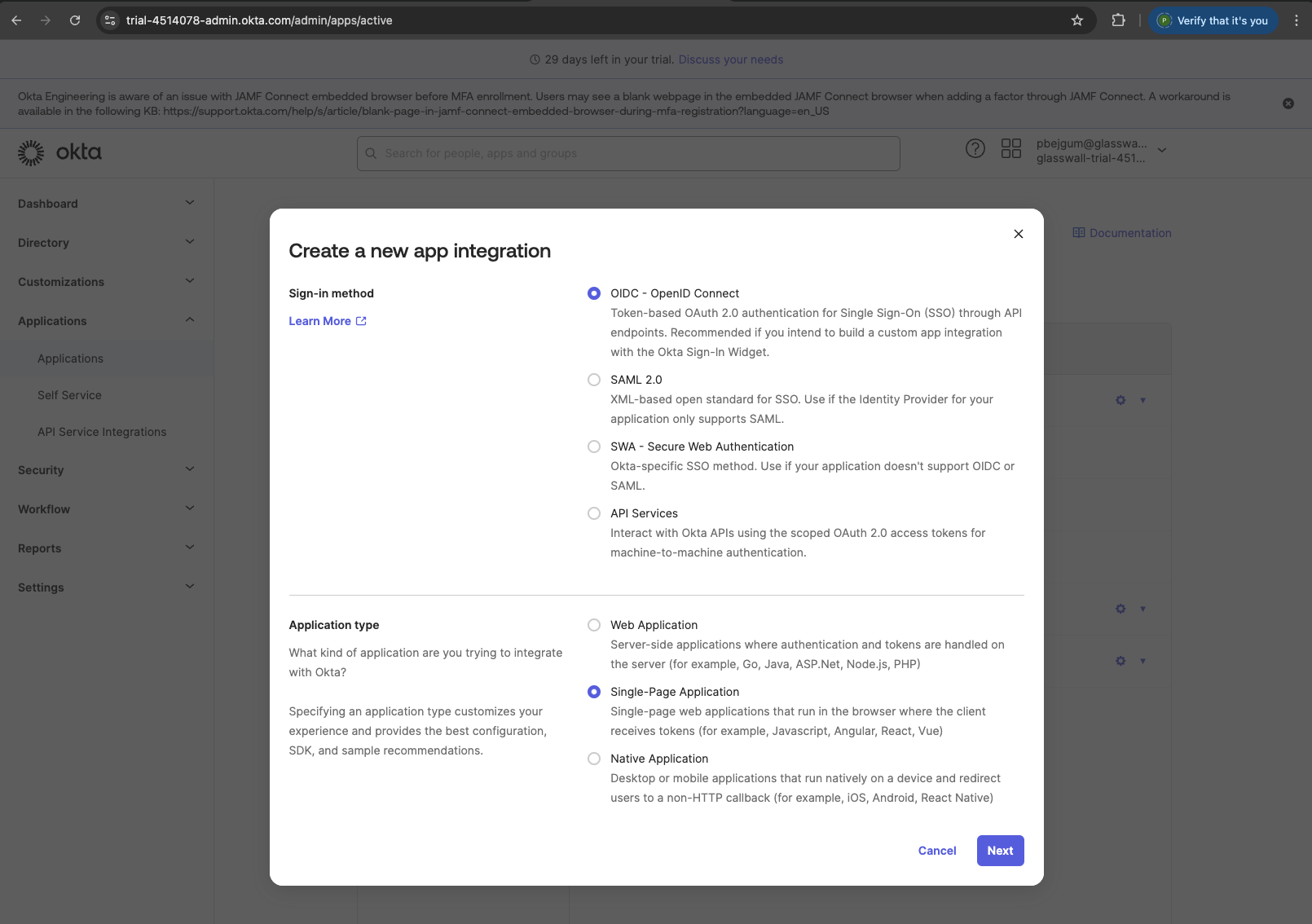
Applications->Applications. - คลิก Create App Integration → เลือก OIDC - OpenID Connect.
- คลิก Single-Page Application.
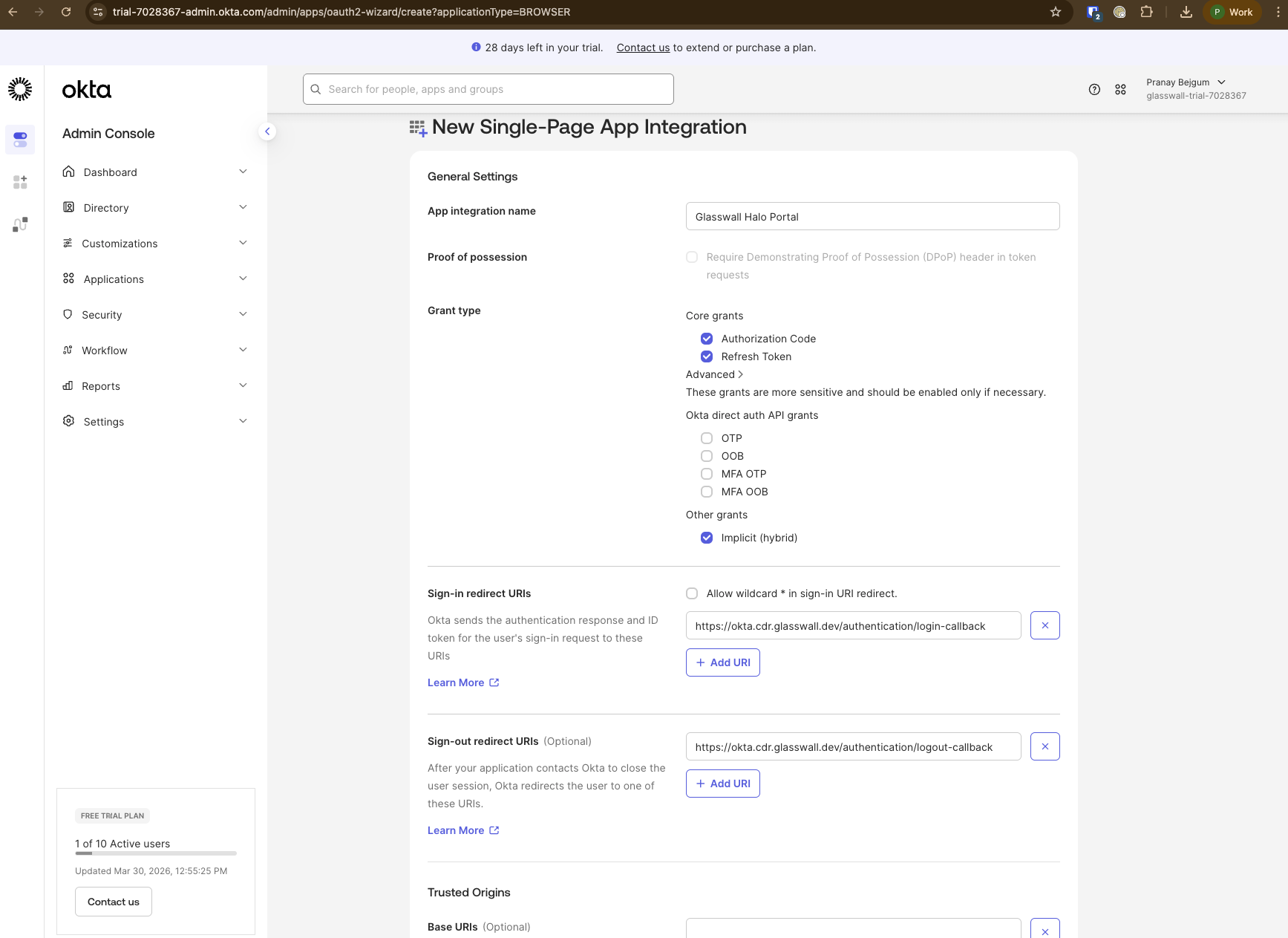
กำหนดค่า app integration
- Configure the following settings:
- ชื่อ app integration: เช่น
Glasswall Halo Portal - Grant type: Choose below 3 options
- Authorization Code
- Refresh Token
- Implicit (hybrid)
- Sign-in redirect URIs: เช่น
https://<your-halo-domain>/authentication/login-callback - Sign-out redirect URIs: เช่น
https://<your-halo-domain>/authentication/logout-callback - การเข้าถึงแบบควบคุม: เลือก
Allow everyone in your organization to accessหรือเลือกเฉพาะบางกลุ่มหากคุณต้องการจำกัดการเข้าถึงให้กับคนเพียงไม่กี่คน - ยกเลิกการเลือก
Enable immediate access with Federation Broker Mode.
- ชื่อ app integration: เช่น
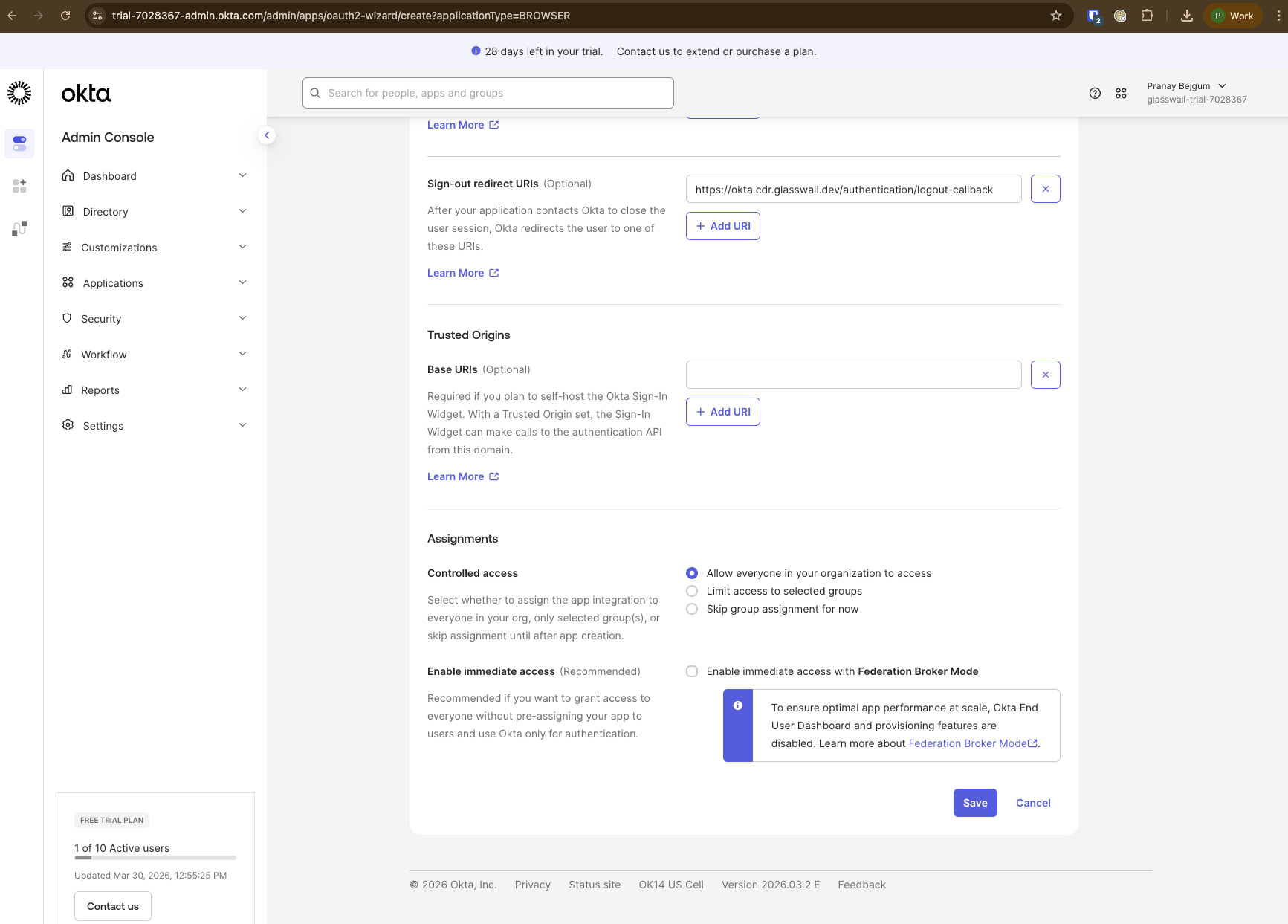
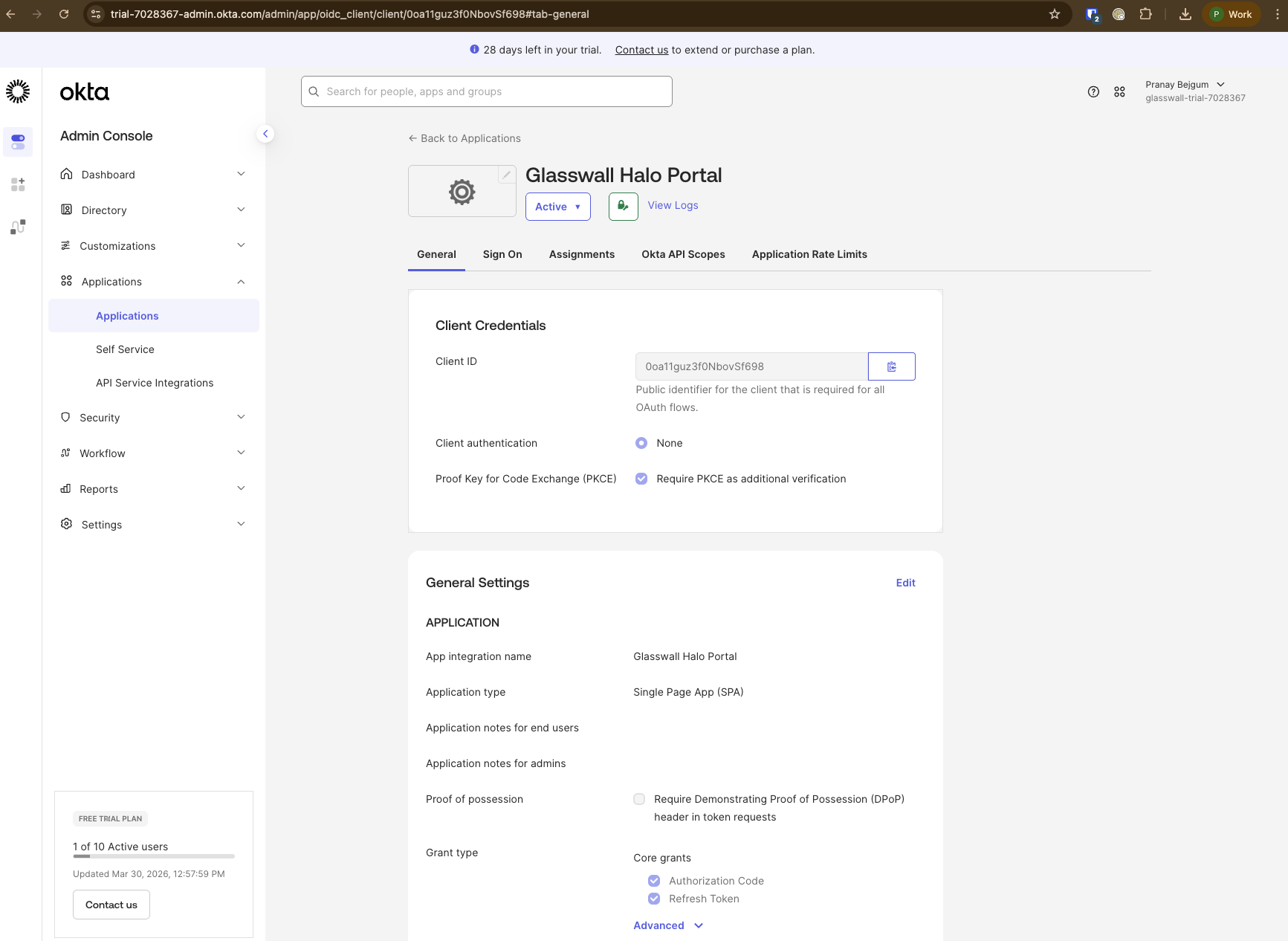
บันทึกแอปพลิเคชันและจดบันทึก client ID
-
บันทึก Application และจดบันทึก
Client ID.export PORTAL_CLIENT_ID=""
ให้สิทธิ์ API scopes
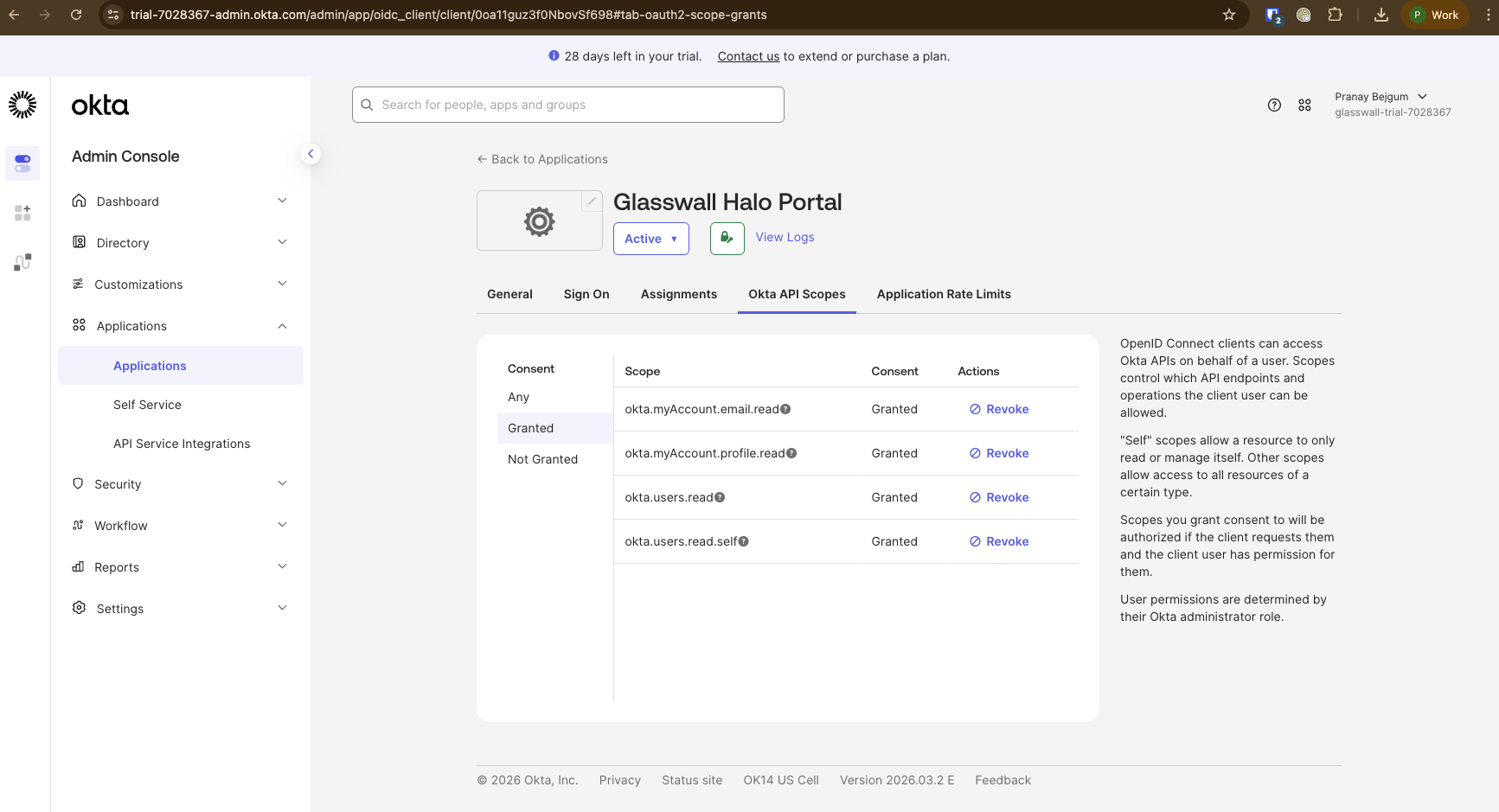
- Navigate to
Okta API Scopestab in the application and grant below scopes.okta.myAccount.email.readokta.myAccount.profile.readokta.users.readokta.users.read.self
จดบันทึก issuer URI และ audience
-
จาก authorization server ที่กำหนดค่าไว้ในขั้นตอนข้อกำหนดเบื้องต้น ให้จดบันทึก
Issuer Metadata URIและVALID_AUDIENCE:export OKTA_ISSUER_URI="https://<your-okta-domain>/oauth2/<authorization-server-id>"
export OKTA_ORIGIN="https://<your-okta-domain>"
export VALID_AUDIENCE="api://halo"
เพิ่ม access policy สำหรับ portal
- ไปที่แท็บ
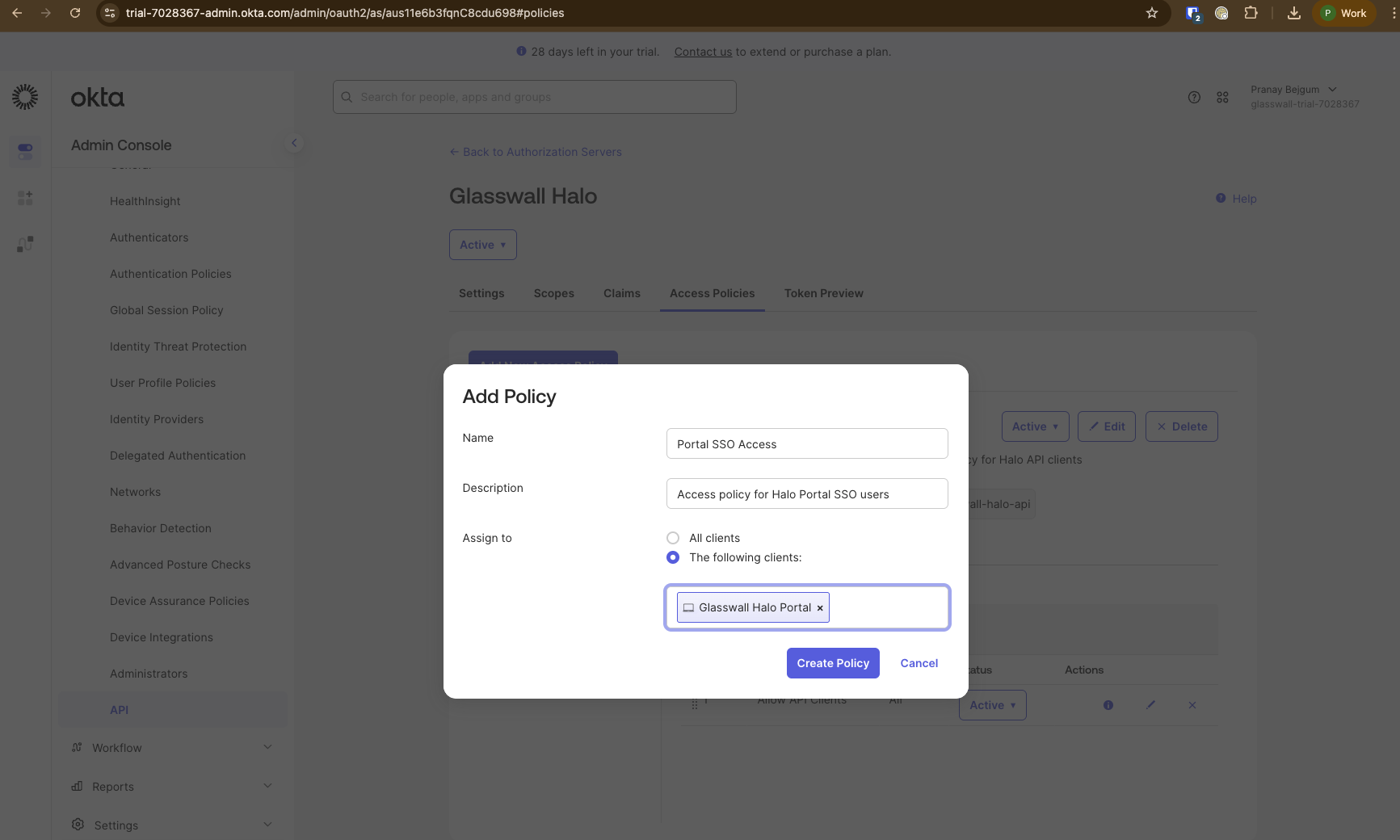
Access Policiesของ authorization server (Security->API-> เลือก authorization server ของคุณ ->Access Policies) - Add a new access policy:
- ชื่อ: ตัวอย่างเช่น
Portal SSO Access - คำอธิบาย: ตัวอย่างเช่น
Access policy for Halo Portal SSO users - กำหนดให้กับ: ไคลเอนต์ Portal SPA ที่สร้างไว้ด้านบน (ค้นหาตามชื่อ
Glasswall Halo Portal)
- ชื่อ: ตัวอย่างเช่น
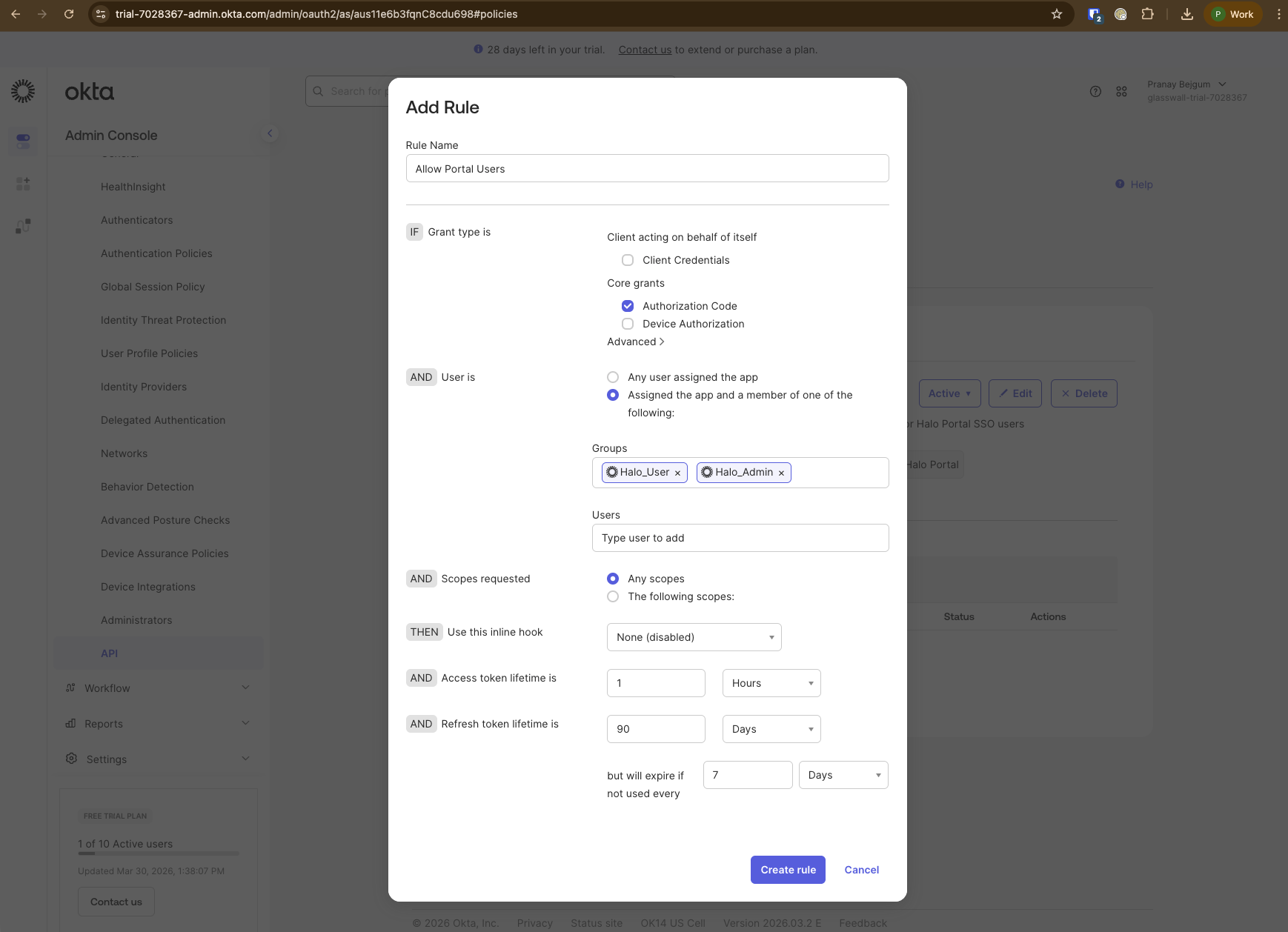
- Add a rule:
- ชื่อ: ตัวอย่างเช่น
Allow Portal Users - ประเภทการให้สิทธิ์:
Authorization Code - ผู้ใช้เป็นสมาชิกของ:
Everyone(หรือจำกัดไว้ที่กลุ่มเฉพาะ เช่นHalo-Adminหากคุณต้องการจำกัดการเข้าถึง Portal) - ปล่อยการตั้งค่าอื่น ๆ ไว้เป็นค่าเริ่มต้น หรือปรับตามต้องการ
- ชื่อ: ตัวอย่างเช่น
อัปเดตบริการ Portal
export HALO_DOMAIN=<your-halo-domain>
helm upgrade --install cdrplatform-portal cdrplatform-portal -n cdrplatform --reuse-values \
  --set configuration.AutoAdmin=false \
  --set configuration.BackendScope="email openid profile" \
  --set configuration.BackendUrl="https://${HALO_DOMAIN:?}" \
  --set configuration.EnabledPages="SystemSettings\,PolicySettings\,IcapSettings\,IcapRequests\,IcapReporting" \
  --set configuration.OIDC.ProviderOptions.Authority="${OKTA_ISSUER_URI:?}" \
  --set configuration.OIDC.ProviderOptions.ClientId="${PORTAL_CLIENT_ID:?}" \
  --set configuration.OIDC.ProviderOptions.PostLogoutRedirectUri="https://${HALO_DOMAIN:?}/authentication/logout-callback" \
  --set configuration.OIDC.ProviderOptions.RedirectUri="https://${HALO_DOMAIN:?}/authentication/login-callback" \
  --set appenvironment.HTTP_CSP_CONNECT_SRC="'self' ${OKTA_ORIGIN:?}" \
  --set appenvironment.HTTP_CSP_FRAME_SRC="'self' ${OKTA_ORIGIN:?}" \
  --set appenvironment.HTTP_CSP_FRAME_ANCESTORS="'self' ${OKTA_ORIGIN:?}" \
  --set ingress.enabled=true \
  --set ingress.tls.domain="${HALO_DOMAIN:?}" \
  --set ingress.tls.enabled=true \
  --atomic
อัปเดตบริการ Portal-Access
helm upgrade --install cdrplatform-portal-access -n cdrplatform cdrplatform-portal-access --reuse-values \
  --set configuration.Authentication__Schemes__Bearer__Authority="${OKTA_ISSUER_URI:?}" \
  --set configuration.Authentication__Schemes__Bearer__ValidAudiences__0="${VALID_AUDIENCE:?}" \
  --set configuration.Authentication__Schemes__Bearer__ValidIssuer="${OKTA_ISSUER_URI:?}" \
  --set configuration.AuthenticationScheme="Bearer" \
  --set configuration.CORSDOMAIN="'*'" \
  --set ingress.enabled=true \
  --set ingress.tls.domain="${HALO_DOMAIN:?}" \
  --set ingress.tls.enabled=true \
  --atomic
ให้สิทธิ์การเข้าถึงแก่ผู้ใช้
มี 2 บทบาทใน Halo คือ User และ Admin บทบาทจะถูกกำหนดค่าผ่านการเป็นสมาชิกกลุ่มบนเซิร์ฟเวอร์การให้สิทธิ์ของ Okta (ดู กำหนดบทบาท)
- หากต้องการให้บทบาทผู้ใช้ ให้เพิ่มผู้ใช้ไปยังกลุ่ม
Halo_User - หากต้องการให้บทบาทผู้ดูแลระบบ ให้เพิ่มผู้ใช้ไปยังกลุ่ม
Halo_Admin